01
Upload your video
Add footage you own or have permission to edit.
 Open Wipe AI text remover
Remove burned-in text from authorized 9:16 video while keeping the vertical frame and protecting faces, products, and UI.
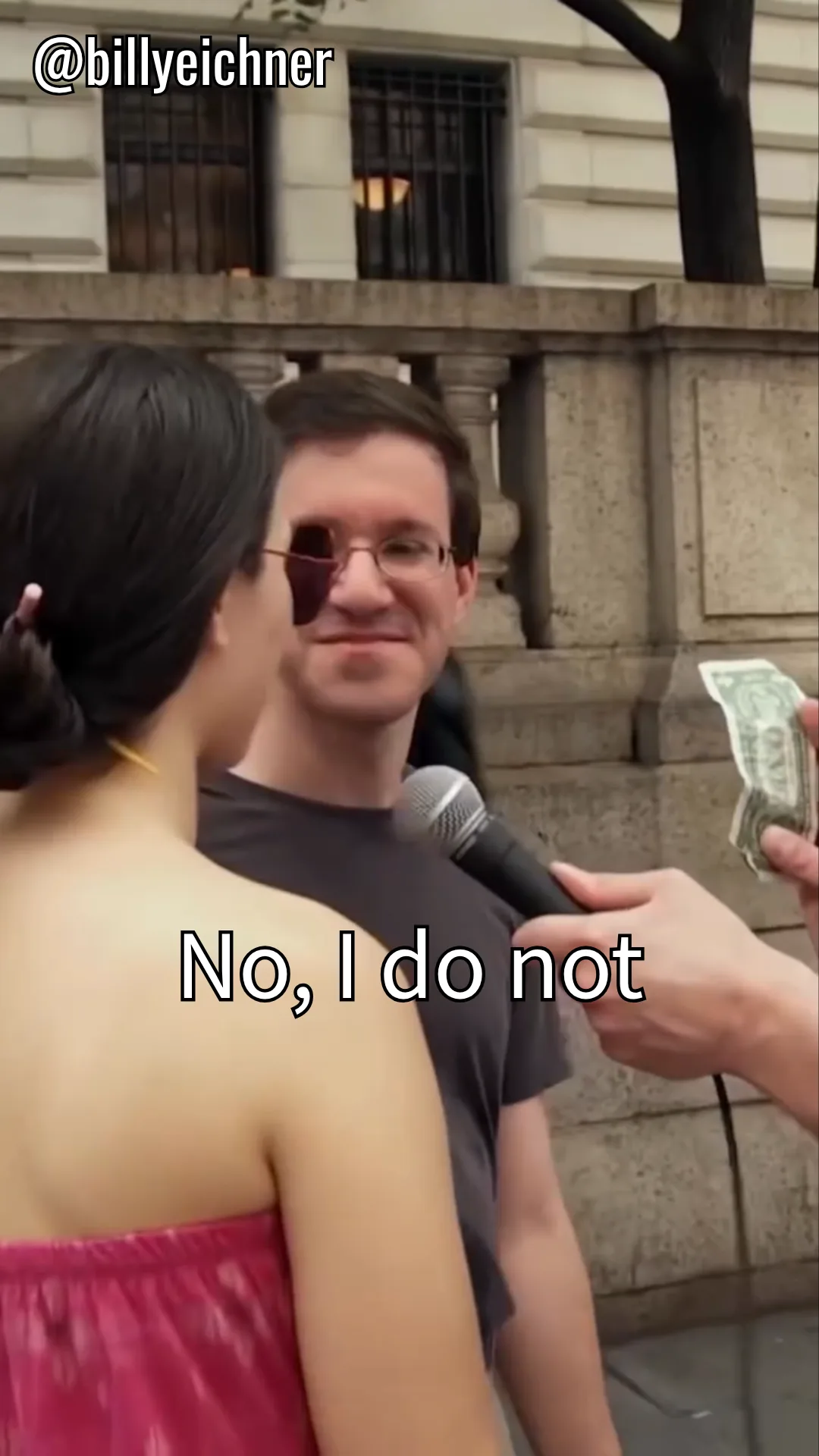
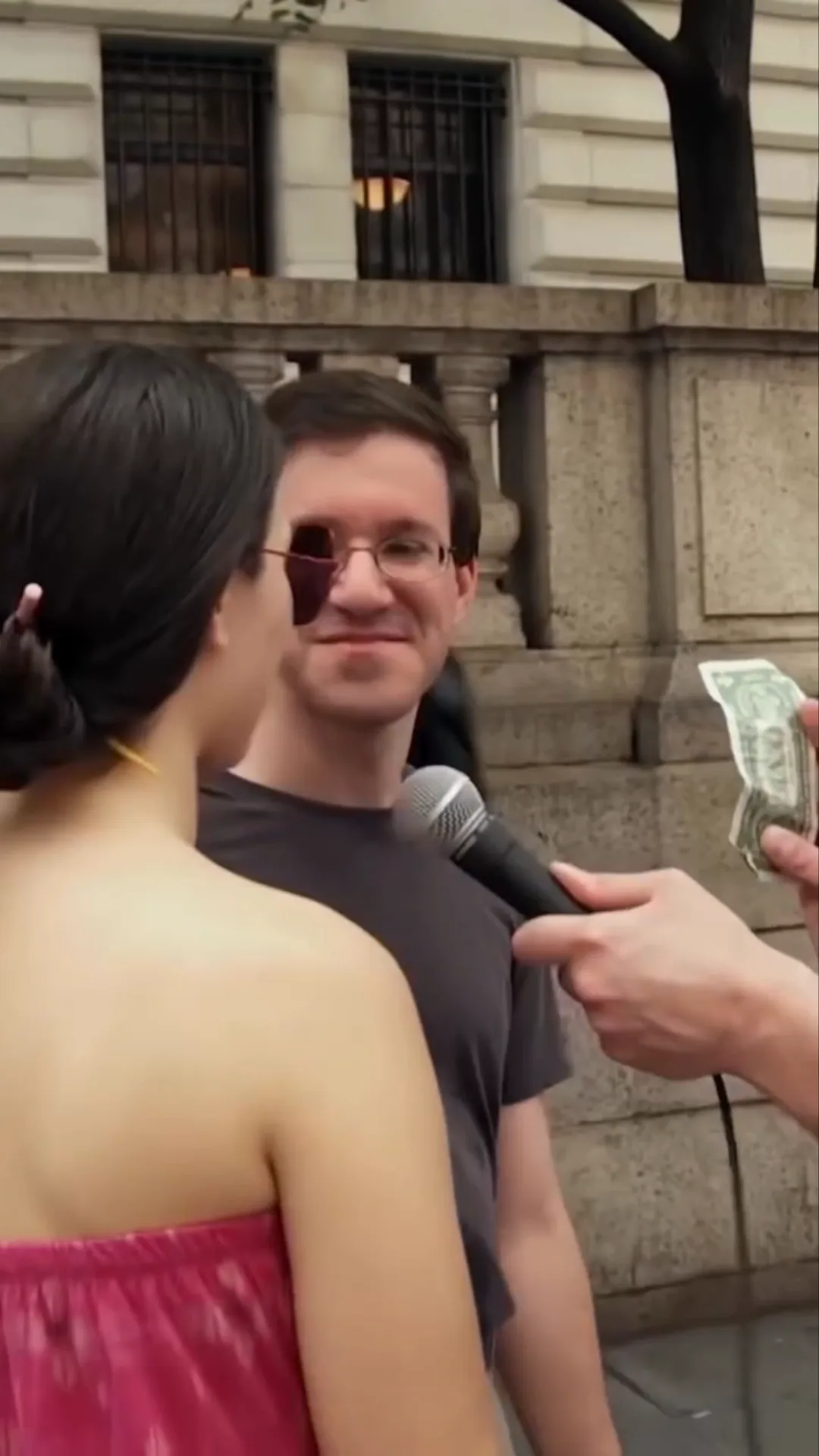
The new dashboard opens directly with Text Remover selected.
Add footage you own or have permission to edit.
Scan the video or mark exact text areas and time ranges.
Inspect the cleaned result and export an available resolution.
Keep the full frame when the subject, product, hands, or interface already uses the available width. Select only the visible letters and their shadow or plate instead of cropping the entire caption band.
Word-by-word captions change size and position quickly. Include the largest footprint within a stable layout, but do not cover every possible caption position if the design changes between sections.
Wipe AI exports H.264 MP4 at up to 1080p. Confirm the output dimensions and safe zones before adding new captions, platform UI, or branded text.
Keep the full frame when the subject, product, hands, or interface already uses the available width. Select only the visible letters and their shadow or plate instead of cropping the entire caption band.
If the text jumps between top, center, and bottom positions, create separate time ranges. A single tall mask would erase clean visual information throughout the clip.
Word-by-word captions change size and position quickly. Include the largest footprint within a stable layout, but do not cover every possible caption position if the design changes between sections.
Preview hair, faces, fingers, product edges, and patterned clothing. Small reconstruction errors are more noticeable when the text sits directly over the subject.
Wipe AI exports H.264 MP4 at up to 1080p. Confirm the output dimensions and safe zones before adding new captions, platform UI, or branded text.
Keep new captions editable or in a separate subtitle track when the publishing platform allows it. This makes future localization and corrections easier.
Yes. Region-based cleanup does not require cropping the vertical frame, though the output may be re-encoded.
Visible caption regions can be processed, but changing layouts should be split by time and tested where they overlap the subject.
No. If text hides a face, inpainting estimates the missing area. Use a clean source whenever accuracy matters.
Text removal estimates hidden pixels. Focused selections give the model more useful surrounding context.
Yes. Region-based cleanup does not require cropping the vertical frame, though the output may be re-encoded.
Visible caption regions can be processed, but changing layouts should be split by time and tested where they overlap the subject.
No. If text hides a face, inpainting estimates the missing area. Use a clean source whenever accuracy matters.
Wipe AI exports an H.264 MP4 at up to 1080p.
Start with a clean source or removable subtitle track when available; use AI reconstruction only for visible pixels that need repair.
Open the new dashboard and process only footage you are authorized to edit.
Open Wipe AI text remover