01
Upload authorized footage
Add the video you own or have permission to edit.
 Open Wipe AI watermark remover
Remove a visible InShot watermark from a video you created or may edit. Try the clean project export first, then mask a baked-in corner mark online.
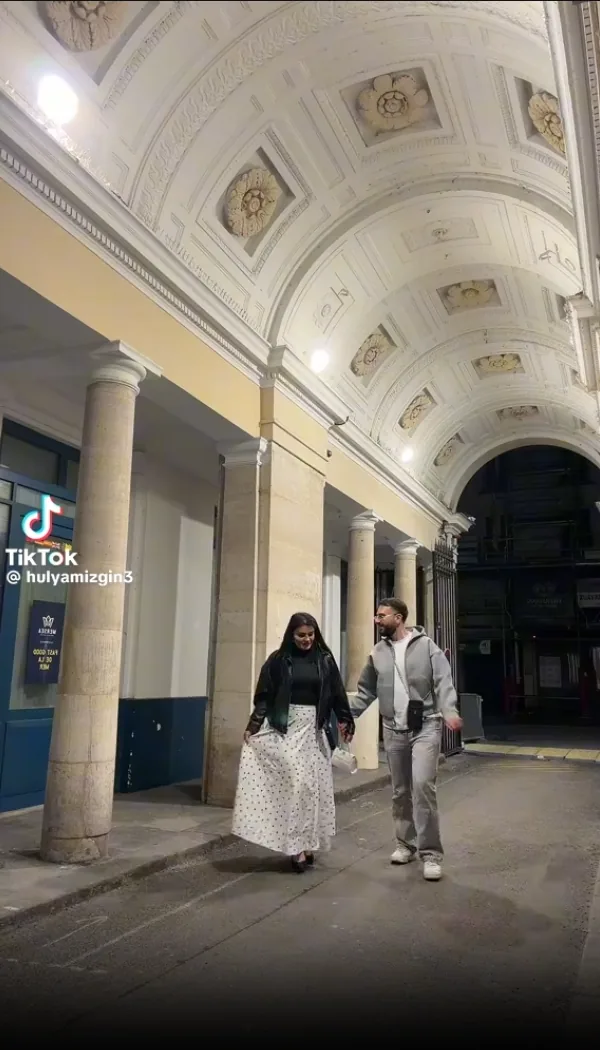
The call to action opens the new Wipe AI dashboard directly with Watermark Remover selected.
Add the video you own or have permission to edit.
Place a tight box over the visible mark and set its active seconds.
Review edges, motion and scene changes before downloading.
Look for the editable project, an earlier clean export, or the original camera clips. If a clean re-export is possible, it will retain real detail behind the badge and usually produce a more predictable result than reconstruction.
Draw the smallest selection that covers the letters, icon, shadow, and antialiased edge. Oversized masks remove valid pixels and can make a smooth corner look unnecessarily soft.
On narrow social-video frames, a corner mask occupies a larger share of the picture. Check the repaired edge at full-screen size and watch for pulsing, repeated texture, bent lines, or a visible patch after platform recompression.
Look for the editable project, an earlier clean export, or the original camera clips. If a clean re-export is possible, it will retain real detail behind the badge and usually produce a more predictable result than reconstruction.
If only the finished file remains, keep an untouched master. Note whether the mark stays in one corner, fades, changes size, or sits over a border added by the editor.
Draw the smallest selection that covers the letters, icon, shadow, and antialiased edge. Oversized masks remove valid pixels and can make a smooth corner look unnecessarily soft.
Test a short range containing camera motion, a face, hair, fine texture, or text behind the mark. These frames reveal problems earlier than a plain wall or sky.
On narrow social-video frames, a corner mask occupies a larger share of the picture. Check the repaired edge at full-screen size and watch for pulsing, repeated texture, bent lines, or a visible patch after platform recompression.
Wipe AI outputs MP4, so preserve the original aspect ratio in your publishing workflow and compare duration, audio sync, framing, and color before replacing any approved master.
Keep the untouched source, the mask or decision notes, and the approved export together. Record why the edit was authorized, which time ranges changed, and which source-first options were checked. For this page, the intended task is: Transactional: clean a visible InShot mark from an owned or licensed finished export.
Before delivery, verify duration, aspect ratio, audio sync, and every repaired boundary in the actual viewing environment. Note that Wipe AI accepts MP4, MOV, WebM, AVI, and MKV, then exports H.264 MP4 up to 1080p. It processes one video at a time, results depend on motion and background complexity, and the output may be re-encoded.
Wipe AI can process a visible mark already burned into an authorized video. A clean project export remains the best option when available.
No. Inpainting creates a plausible replacement from surrounding frames; it cannot recover pixels that were never present in the flattened file.
Wipe AI supports MP4, MOV, WebM, AVI, and MKV input and exports H.264 MP4 up to 1080p.
No. Only process content you own, license, or have explicit permission to modify.
Simple backgrounds are easier. Faces, hands, reflections, detailed textures and fast camera movement should be tested on a short clip first.
Wipe AI can process a visible mark already burned into an authorized video. A clean project export remains the best option when available.
No. Inpainting creates a plausible replacement from surrounding frames; it cannot recover pixels that were never present in the flattened file.
Wipe AI supports MP4, MOV, WebM, AVI, and MKV input and exports H.264 MP4 up to 1080p.
No. Only process content you own, license, or have explicit permission to modify.
Open the new dashboard, add one or more selections and process authorized footage.
Open Wipe AI watermark remover