01
Upload authorized footage
Add the video you own or have permission to edit.
 Open Wipe AI watermark remover
Remove a burned-in logo from an authorized screen recording. Check scrolling, cursor motion, small text, and interface accuracy.
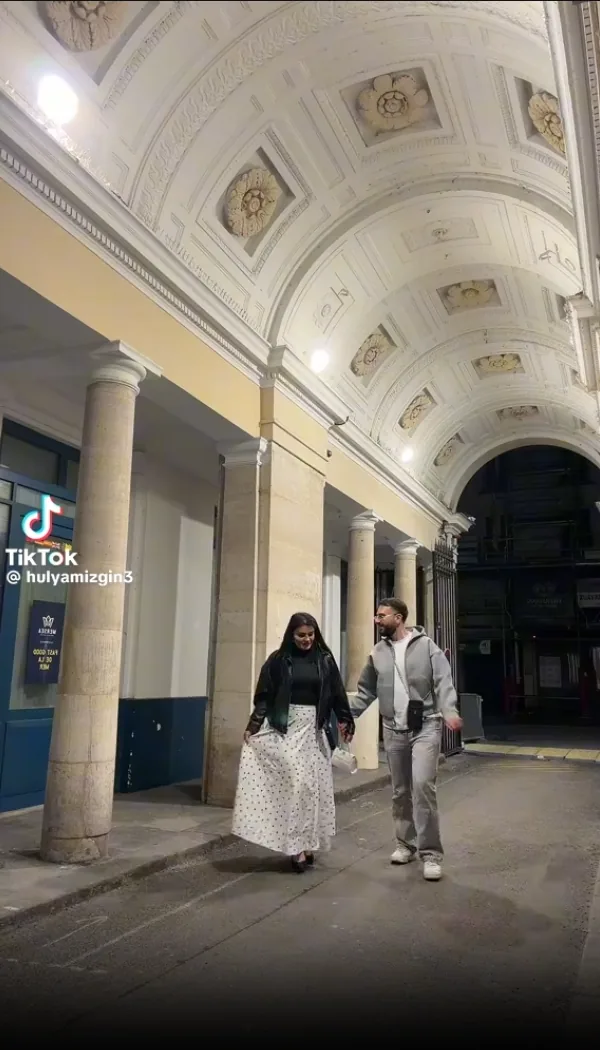
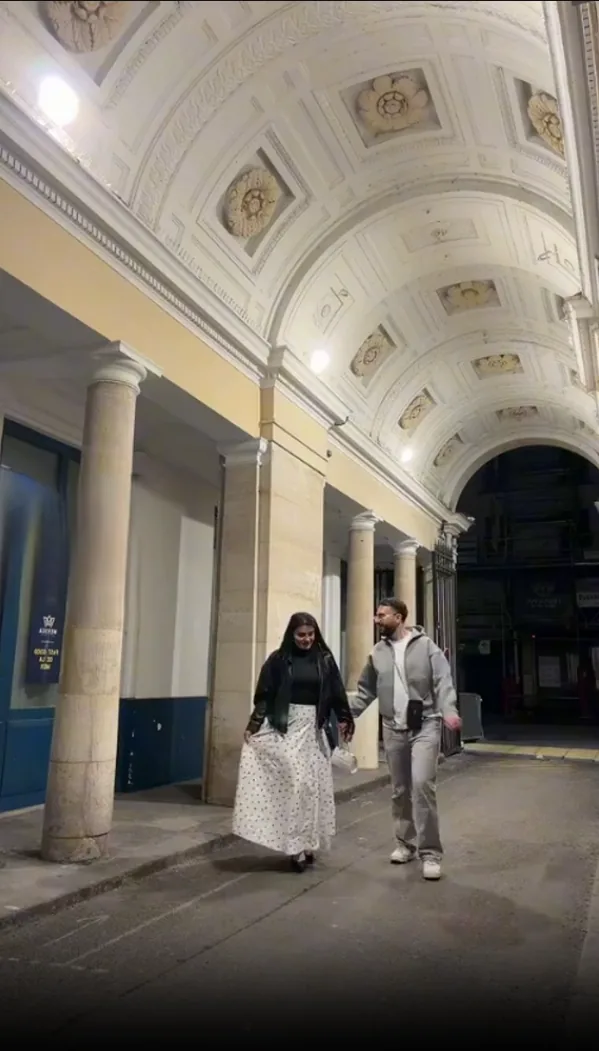
The call to action opens the new Wipe AI dashboard directly with Watermark Remover selected.
Add the video you own or have permission to edit.
Place a tight box over the visible mark and set its active seconds.
Review edges, motion and scene changes before downloading.
Check for an unbranded local recording, editable tutorial project, browser demo source, or original application state. Re-recording a short accurate sequence can be faster and safer than reconstructing interface details.
A static logo over a moving page exposes different content every frame. Test scrolls, menus, animations, and any cursor pass behind the mark. Split the job if the logo moves or disappears.
When the hidden region contains information that cannot be verified, cover it with a neutral panel, crop a disposable margin, or recreate the screen accurately. A polished but incorrect interface is worse than a visible edit.
Check for an unbranded local recording, editable tutorial project, browser demo source, or original application state. Re-recording a short accurate sequence can be faster and safer than reconstructing interface details.
If cleanup is necessary, preserve the source and identify the logo border, transparency, shadow, and every position it occupies.
A static logo over a moving page exposes different content every frame. Test scrolls, menus, animations, and any cursor pass behind the mark. Split the job if the logo moves or disappears.
Do not assume generated text is correct. Pause the output and compare commands, prices, settings, dates, and labels with the actual application.
When the hidden region contains information that cannot be verified, cover it with a neutral panel, crop a disposable margin, or recreate the screen accurately. A polished but incorrect interface is worse than a visible edit.
Keep required attribution and comply with software, meeting, client, and platform permissions.
Yes, a visible logo region in an authorized recording can be selected for processing.
It may not be. Inpainting estimates pixels, so verify or recreate any important text and controls.
Test that movement first. The repair must remain stable while different interface content crosses the selected area.
Only edit recordings you own or have permission to modify, and keep required attribution or disclosures.
Simple backgrounds are easier. Faces, hands, reflections, detailed textures and fast camera movement should be tested on a short clip first.
Yes, a visible logo region in an authorized recording can be selected for processing.
It may not be. Inpainting estimates pixels, so verify or recreate any important text and controls.
Test that movement first. The repair must remain stable while different interface content crosses the selected area.
Only edit recordings you own or have permission to modify, and keep required attribution or disclosures.
Open the new dashboard, add one or more selections and process authorized footage.
Open Wipe AI watermark remover