01
Upload authorized footage
Add the video you own or have permission to edit.
 Open Wipe AI watermark remover
Plan the removal of multiple visible marks from an authorized video. Process separate regions, moving overlays, scene changes, and overlapping text safely.
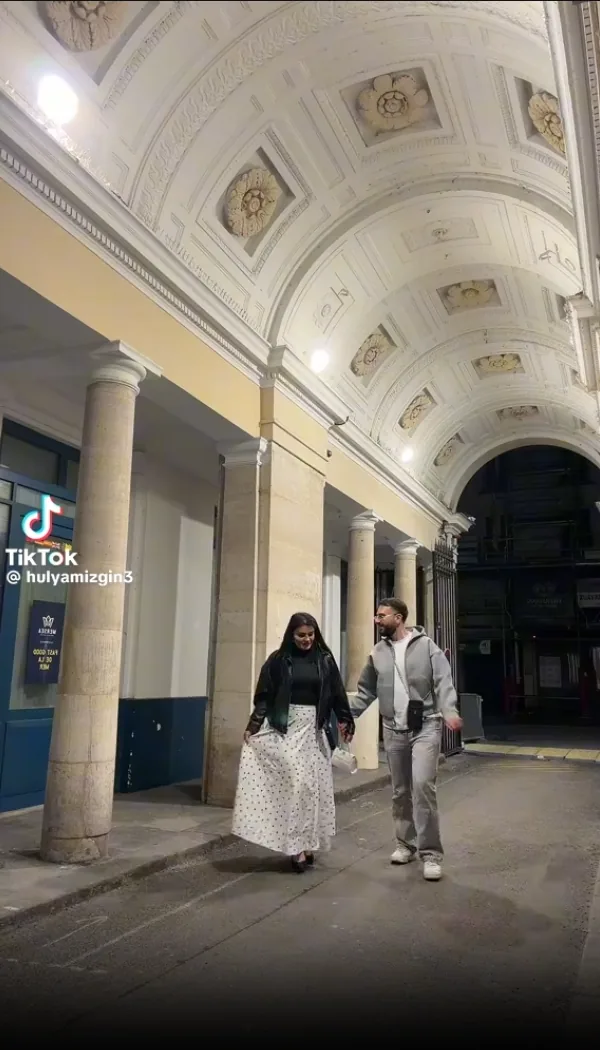
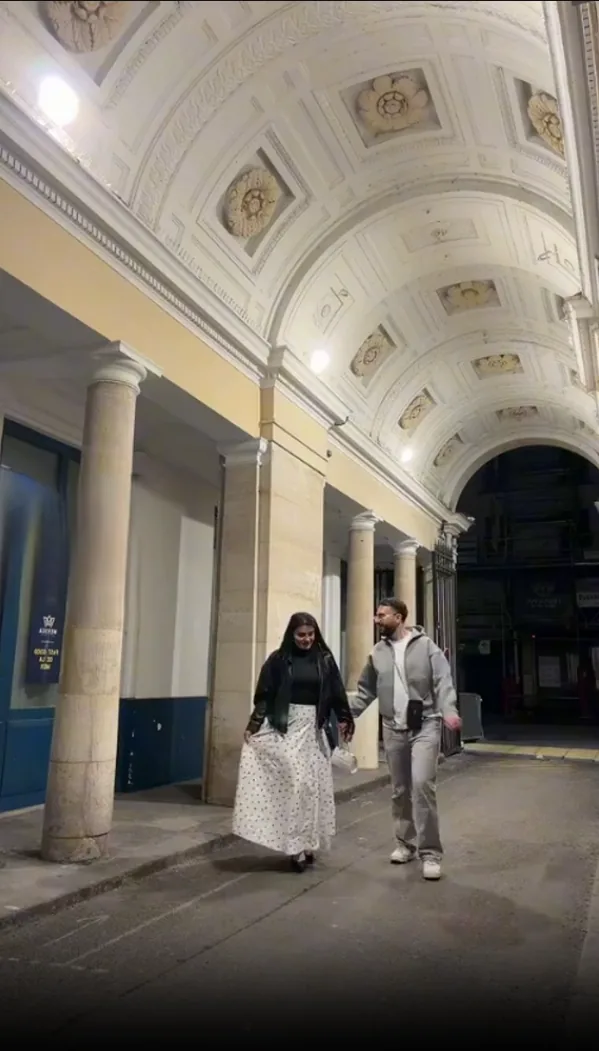
The call to action opens the new Wipe AI dashboard directly with Watermark Remover selected.
Add the video you own or have permission to edit.
Place a tight box over the visible mark and set its active seconds.
Review edges, motion and scene changes before downloading.
The workflow applies to owned compilation videos, old campaign exports, screen captures, and multi-platform drafts containing several obsolete labels or creator-owned logos.
Build a timeline map with mark A, B, and C; record position, motion, and active frames; then process stable regions separately. Recheck quality after each pass to avoid compounding artifacts.
Several large masks can remove too much original information. Processing one reconstructed result again may amplify softness, flicker, and compression artifacts.
The workflow applies to owned compilation videos, old campaign exports, screen captures, and multi-platform drafts containing several obsolete labels or creator-owned logos.
Build a timeline map with mark A, B, and C; record position, motion, and active frames; then process stable regions separately. Recheck quality after each pass to avoid compounding artifacts.
Several large masks can remove too much original information. Processing one reconstructed result again may amplify softness, flicker, and compression artifacts.
Return to source projects, replace the whole branded layout, crop a shared border, or rebuild the edit from clean clips when many overlays cover the footage.
Watch the result once at normal speed, once at half speed, and then inspect scene changes frame by frame. Look for flicker, repeated texture, warped straight lines, softened faces, color shifts, and compression around the selection. If the difficult frames fail, reduce the region, split the timeline into scenes, or choose a source-first alternative.
Treat multiple watermarks as separate time-based regions. Map when each mark appears, process the smallest necessary areas, and preview overlaps before applying reconstruction to the complete authorized video. Only process videos you own, license, or have permission to edit.
No. Inpainting estimates pixels that are not visible. A clean source or editable project preserves the real background and should be the first choice.
Test a short, difficult section first. Check the result at normal speed and frame by frame before spending credits on a long file.
No. Technical editing does not change copyright, licensing, attribution, privacy, or platform obligations.
Simple backgrounds are easier. Faces, hands, reflections, detailed textures and fast camera movement should be tested on a short clip first.
Treat multiple watermarks as separate time-based regions. Map when each mark appears, process the smallest necessary areas, and preview overlaps before applying reconstruction to the complete authorized video. Only process videos you own, license, or have permission to edit.
No. Inpainting estimates pixels that are not visible. A clean source or editable project preserves the real background and should be the first choice.
Test a short, difficult section first. Check the result at normal speed and frame by frame before spending credits on a long file.
No. Technical editing does not change copyright, licensing, attribution, privacy, or platform obligations.
Open the new dashboard, add one or more selections and process authorized footage.
Open Wipe AI watermark remover