
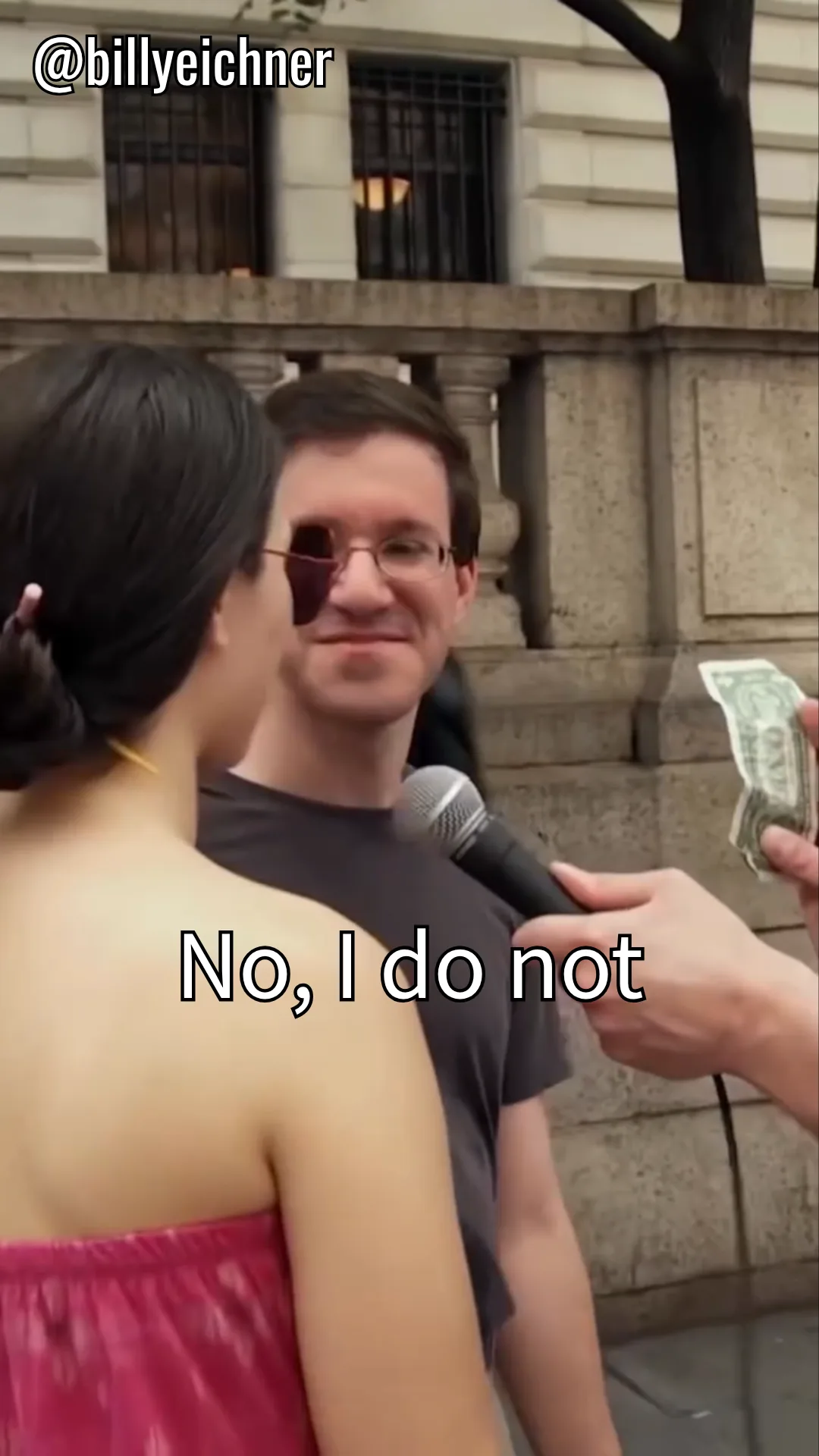
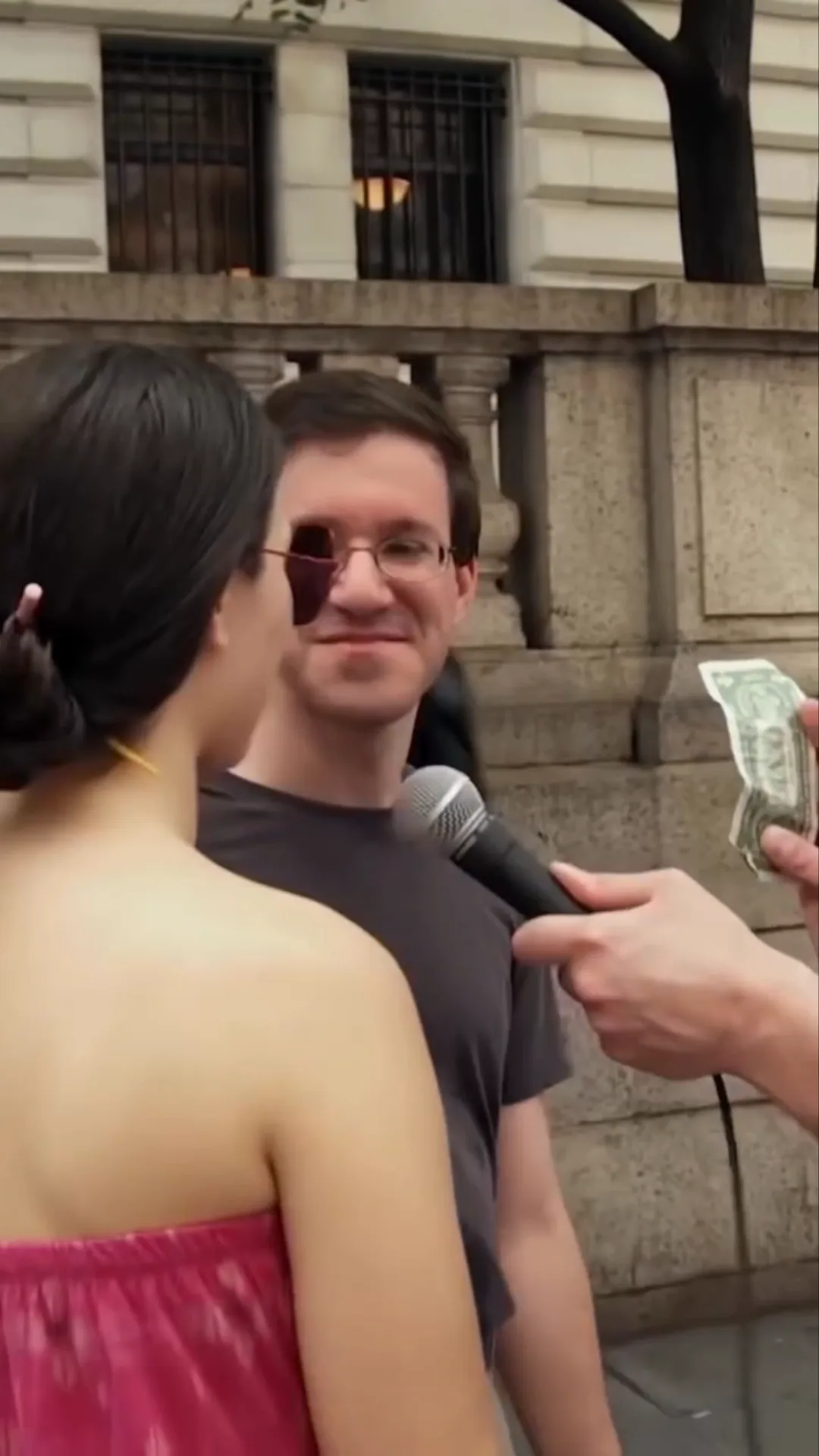
Two kinds of captions
Caption track (soft captions). The words are stored next to the picture and drawn on top while the video plays. Viewers can turn them on or off, and the app can restyle or move them. Auto captions on TikTok, Instagram and YouTube work this way. Nothing needs to be removed from the video itself.
Burned-in text (hard captions). The letters are pixels of each frame, like anything else the camera saw. They stay on screen in every player and every copy of the file. Removing them means either exporting again from the editing project without the text, or rebuilding the pixels behind the letters with AI.
Which captions are which, app by app
Menus change often, so treat this as a guide and use the one-minute check below to be sure about your own clip.
- TikTok auto captions: a caption track. Viewers can hide them, and you can switch them off for your post. Nothing to erase.
- TikTok text added with the text tool or text-to-speech: part of the video once it is posted or saved.
- Instagram Reels captions sticker: a sticker is drawn into the video, so it is burned in.
- Instagram auto-generated captions: shown by the app and can be turned off; they are not part of the picture.
- YouTube Shorts auto captions (CC): a caption track that viewers turn on or off.
- Text added in the Shorts editor: burned in.
- Captions from CapCut, InShot, VN and similar editors: burned in when you export the MP4, even when the app generated them automatically.
- Clips you received from a client or supplier: almost always burned in, because the file arrives already exported.
Check your own clip in a minute
- Look for a captions switch. While the post plays, tap the CC or captions button, or open the app's caption setting. If the words disappear, they are a track: switch them off and you are done.
- Open the file outside the app. Play your exported MP4 in your phone's gallery, Photos on Windows or QuickTime on a Mac. If the text is still there and the player offers no subtitle option, it is burned in.
- Still unsure? The hardcoded subtitle checker walks you through it, and this guide covers subtitle files and desktop players.
What to do with burned-in captions
Work down this list and stop at the first option you have:
- You still have the editing project. Delete the caption layer or caption track there and export again. It is free and the picture is untouched.
- You have a clean export from before the captions were added. Use that file instead.
- You only have the exported clip. Upload it to Wipe AI's subtitle remover or the text remover. Automatic mode finds the captions in every frame, including word-by-word captions that change each second, and rebuilds the background behind them. The frame keeps its 9:16 shape; nothing is cropped.
Check the free 10-second preview before you pay. Results are best on short clips with thin captions over a wall, sky, floor or blurred background. Over a face or fine pattern the rebuilt area can look soft, so look at that part closely in the preview. Only edit videos you made or have permission to edit.
Moving a TikTok to Reels or Shorts? This guide covers which file to start from and what to remove before you cross-post.